|
As this forum is rarely used anymore, we've locked it. Feel free to browse and read. Questions? Please reach out to us directly. Cheers! |

|
 |
|
|
| Author |
Message |
egandt
Joined: 05 Jul 2009
Posts: 1
|
| Posted: Sun Jul 05, 2009 8:17 pm Post subject: Unable to work out White and black levels, questions. |
|
|
Ok I'm trying to set the White and Black levels based on the information in the "GREYSCALE & COLOUR CALIBRATION FOR DUMMIES", and I might say failing.
First off I start with white, with:
Test pattern of 100 IRE
100% Contrast and 100% Backlight
My ftT is 115.524 and my Y is 394.044, which I know is way off the target of a 40 ftL
By adjusting the Contrast to 63% and the Backlight to 38% I get to an ftL of 40.631 (which seems close enough for me)
This returns a Y of 138.366
Ok so white is now setup and OK, on to the Black
using the formula provided in the guide I want a ftL of 138.366 * .0065 or .899 call it .9
Test pattern of 10 IRE
without changing anything my ftL is 6.8 which is about 7x what I want at .9, so we need to adjust the brightness from the default of 50 to 0 which then gets me a ftL of 3.297 which is still about 4x what I want, but I have no way to go any lower?
So this does not seem to work, lets try the manual method using the "AVS HD 709" BluRay disk.
The If I select the Brightness & Contrast and black, then I'm suppose to set the levels so that 17-25 are seen to flash, but with brightness at 0% to 100% it never happens at all.
Lets try setting brightness, contrast and backlight all three to 100%, I still see no flashing. 
Question how to I get the ftL to the correct black level?
It would seem that while the White is possible and easy to set, there is no way to set the black level correctly, as if the manual method had works I could have assumed that the issue was with the Eye one Display 2 and blacks (Know it is not very accurate with near black), but since neither manual or formula based work I'm stuck.
Ideas?
Thanks,
ERIC
|
|
| Back to top |
|
 |
dsskid
Joined: 20 Apr 2009
Posts: 28
Location: Long Island, NY
|
| Posted: Thu Jul 09, 2009 3:42 pm Post subject: |
|
|
My Eyeone pro has a difficult ime with readings below 20% IRE, so I tend to set the black levels with the pattern shown in the GreyScale Calibration for Dummies Tutorial:
"Part 5: Setting Black Level (Brightness)
The brightness control adjusts the black level on your display. In other words, it sets the level when the darkest objects become visible. As mentioned previously, setting it too low will cause darker details to be lost into black (black crush). Set too high will cause black to appear grey. Brightness affects all colours at the same time.
Setting brightness is pretty straight forward:
STEP 5.1: Every test disc has what's called a PLUGE pattern (which stands for "Picture Line-Up Generation Equipment" because of the equipment that used to be used to generate greyscale test patterns). They all have a blacker-than-black bar, a black bar (often just the background) and one or two just-above-black bar(s). Skip to the PLUGE pattern on the Digital Video Essentials: HD Basics disc by choosing menu option "Complete Program Menu" -> "Advanced Video Test Patterns" -> 1080p or 720p -> "Video Black w/ new PLUGE".
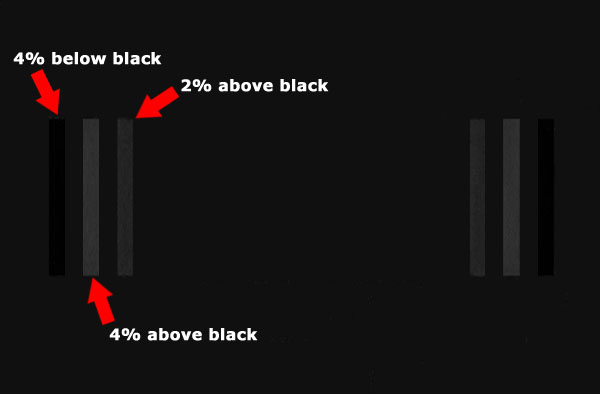
The Digital Video Essential disc has one blacker-than-black bar and two just-above-black bars like this: [b](See attachment below)[/b]
Note: The 4% below black (blacker-than-black) bar may not be visible on your setup. Not all setups will display blacker-than-black (or whiter-than-white) content. While your system will have a slightly reduced video range, you typically will not be losing out on anything if you cannot see this content.
Incidentally, all of the greyscale window patterns from 0 to 100 IRE on the Digital Video Essentials: HD Basics test disc have these PLUGE patterns to the left and right of the image. We use the one that is dark (0 IRE) to make the PLUGE pattern easier to see.
Adjust the brightness control on your display until the 2% above black bar is barely visible and the 4% below black bar is invisible. (The 4% above black is just there for reference). That's it! Simple! You're not supposed to see the 4% below black bar as it is content BELOW black. If you adjust brightness too high such that that 4% below black bar is visible, your black level will be too high and things that are supposed to be black will instead appear grey."
| Description: |
|
| Filesize: |
38.28 KB |
| Viewed: |
37 Time(s) |
|
|
|
| Back to top |
|
|
|
|
|
|
|
You cannot post new topics in this forum
You cannot reply to topics in this forum
You cannot edit your posts in this forum
You cannot delete your posts in this forum
You cannot vote in polls in this forum
You cannot attach files in this forum
You can download files in this forum
|
Forum powered by phpBB © phpBB Group
|
|